Inventory
Overview
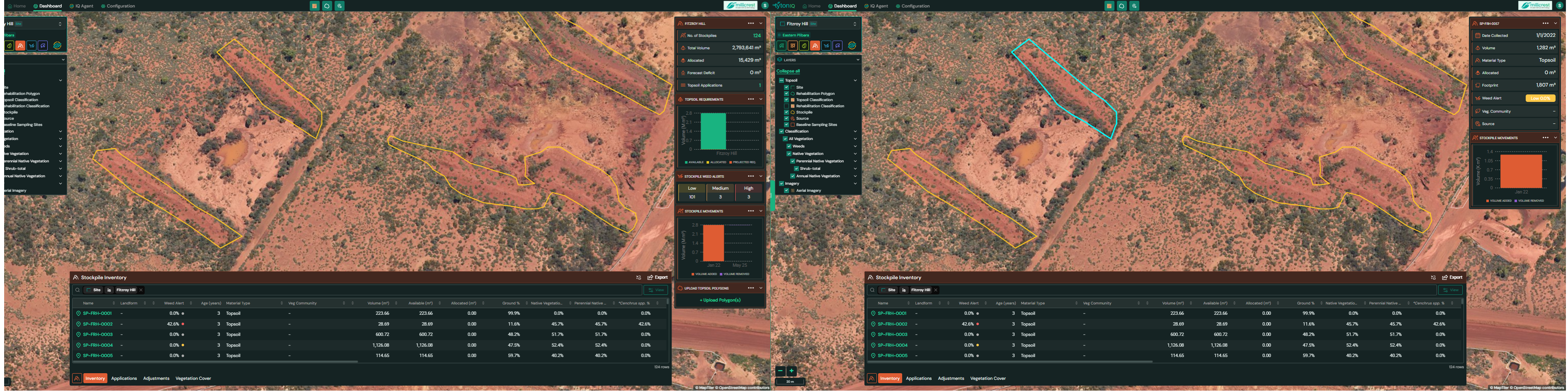
The Stockpile Inventory module displays where topsoil and stockpiles are located, how much volume is available, and how those volumes are being used over time. The map shows stockpiles as yellow polygons; selecting a polygon highlights it turquoise and reveals detailed metrics for that stockpile in the right-hand panel. You can also upload stockpile polygons (e.g., from survey or drone mapping) and track vegetation/weed indicators for each pile.
Access & layout
- Open Stockpile Inventory from the bottom drawer.
- The left LAYERS panel controls visibility for Topsoil → Stockpile, Source, Topsoil Classification, and related vegetation/weed layers.
- The right sidebar shows either site-level summaries (when nothing is selected) or selected stockpile details (when a polygon is selected).
- The bottom drawer lists all stockpiles in a sortable table and includes Export.
Reading the map
- Yellow polygons = stockpiles.
- Turquoise outline = the currently selected stockpile.
- Turn on supporting layers (e.g., Topsoil Classification, Weeds, Vegetation Cover) to add context.
Right sidebar panels
A. Site-level summary (nothing selected)
When no polygon is selected, the panel aggregates across all stockpiles at the current site:
- No. of Stockpiles – count of mapped stockpiles.
- Total Volume – cumulative estimated volume (m³).
- Allocated – total volume already allocated to applications/reclamation (m³).
- Forecast Deficit – projected shortfall based on planned uses (m³).
- Topsoil Applications – count of applications that reference this inventory.
Charts
- Topsoil Requirements – bar chart comparing Available, Allocated, and Projected Requirements.
- Stockpile Weed Alerts – counts by Low / Medium / High risk.
- Stockpile Movements – recent volume added vs volume removed.
B. Selected stockpile details (polygon selected)
Selecting a stockpile (turquoise highlight) switches the panel to per-pile metrics, e.g.:
- Date Collected
- Volume (m³)
- Material Type (e.g., Topsoil)
- Allocated (m³)
- Footprint (m²)
- Weed Alert (Low / Medium / High)
- Veg Diversity (summary indicator)
Tip: Use this panel to verify the health/weed risk of a stockpile before allocating it to rehabilitation works.
Bottom drawer – Stockpile Inventory table
Each row represents one mapped stockpile polygon.
| Column | Description |
|---|---|
| Name | Stockpile identifier. |
| Landform | Mapped landform category (e.g., Crest, Slope, Low Plain). |
| Weed Alert | Risk class for the pile (Low / Medium / High). |
| Age (years) | Age of the stockpile. |
| Material Type | Material (e.g., Topsoil). |
| Veg Community | Vegetation community tag (if assigned). |
| Volume (m³) | Estimated total volume. |
| Available (m³) | Unallocated volume remaining. |
| Allocated (m³) | Volume reserved or used in applications. |
| Ground % | Ground surface cover over the pile. |
| Native Vegetation % | Total native vegetation cover. |
| Other vegetation % | OTher vegeation metrics depending on your vegreation classes |
Use the column filters/sorts to prioritise low-risk, high-volume piles.
Uploading stockpile polygons
You can import mapped piles from GIS in one step:
- Click Upload Polygon(s) in the right sidebar (or the bottom drawer menu).
- Upload a .zip that contains a shapefile with these parts:
.shp(geometry).shx(index).dbf(attributes).prj(projection/CRS).cpg(character encoding)
- Uploaded polygons appear in the inventory table and on the map as yellow stockpiles.
The same upload requirements apply across TytonIQ modules to keep GIS imports consistent.
Export
Click Export (top-right of the bottom drawer) to download the inventory for reporting or offline analysis (e.g., CSV).
Workflow tips
- Start at site-level summary to gauge total reserves, allocations, and weed risk distribution.
- Select a pile to check its weed alert and vegetation context before assigning to a project.
- Keep the Vegetation/Weeds layers visible when auditing piles after rain or disturbance.
- Use Applications and Adjustments tabs to keep Allocated and Available volumes accurate over time.