Seed Inventory
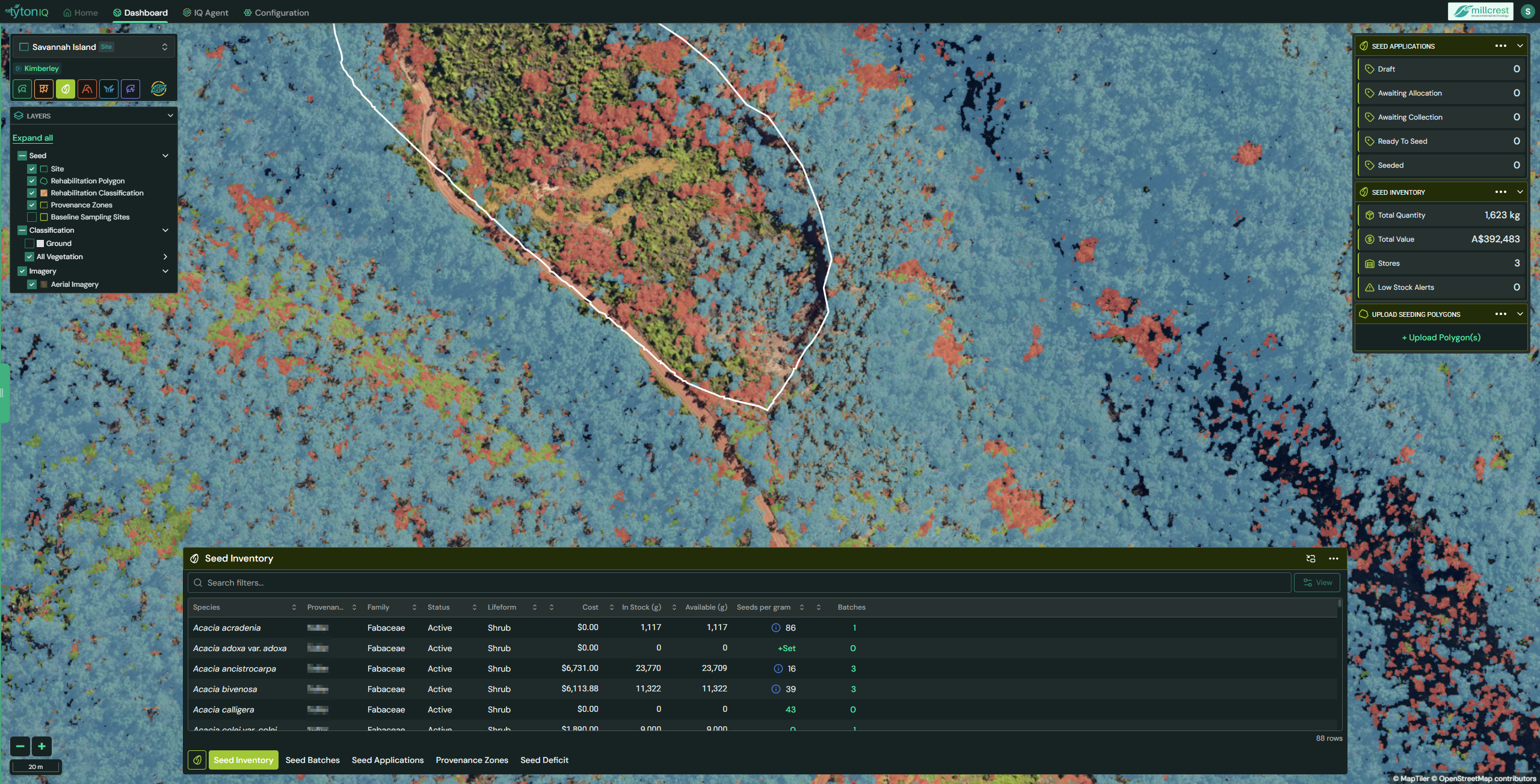
Overview
The Seed Inventory module in TytonIQ provides a centralised system for managing seed stocks, provenance, and readiness for rehabilitation applications. Users can track seed quantities, values, and stores, while also defining critical parameters such as seeds per gram. Seed inventory data links directly with Seed Applications, enabling polygons to be seeded with species based on availability and defined batch data.
Key Features
1. Inventory Management
The bottom panel presents a searchable, sortable list of seed species currently in inventory. Each row contains:
| Field | Description |
|---|---|
| Species | Scientific species name . |
| Provenance | Seed source or collection. |
| Family | Taxonomic family. |
| Status | Inventory status. |
| Lifeform | Growth type. |
| Cost | Assigned unit cost. |
| In Stock (g) | Total grams of seed currently in storage. |
| Available (g) | Usable seed stock available for allocation. |
| Seeds per Gram | Average number of seeds per gram of seed weight. |
| Batches | Number of seed batches contributing to this record. |
2. Seeds Per Gram
Users can set the seeds per gram value for each species to enable accurate seed application calculations:
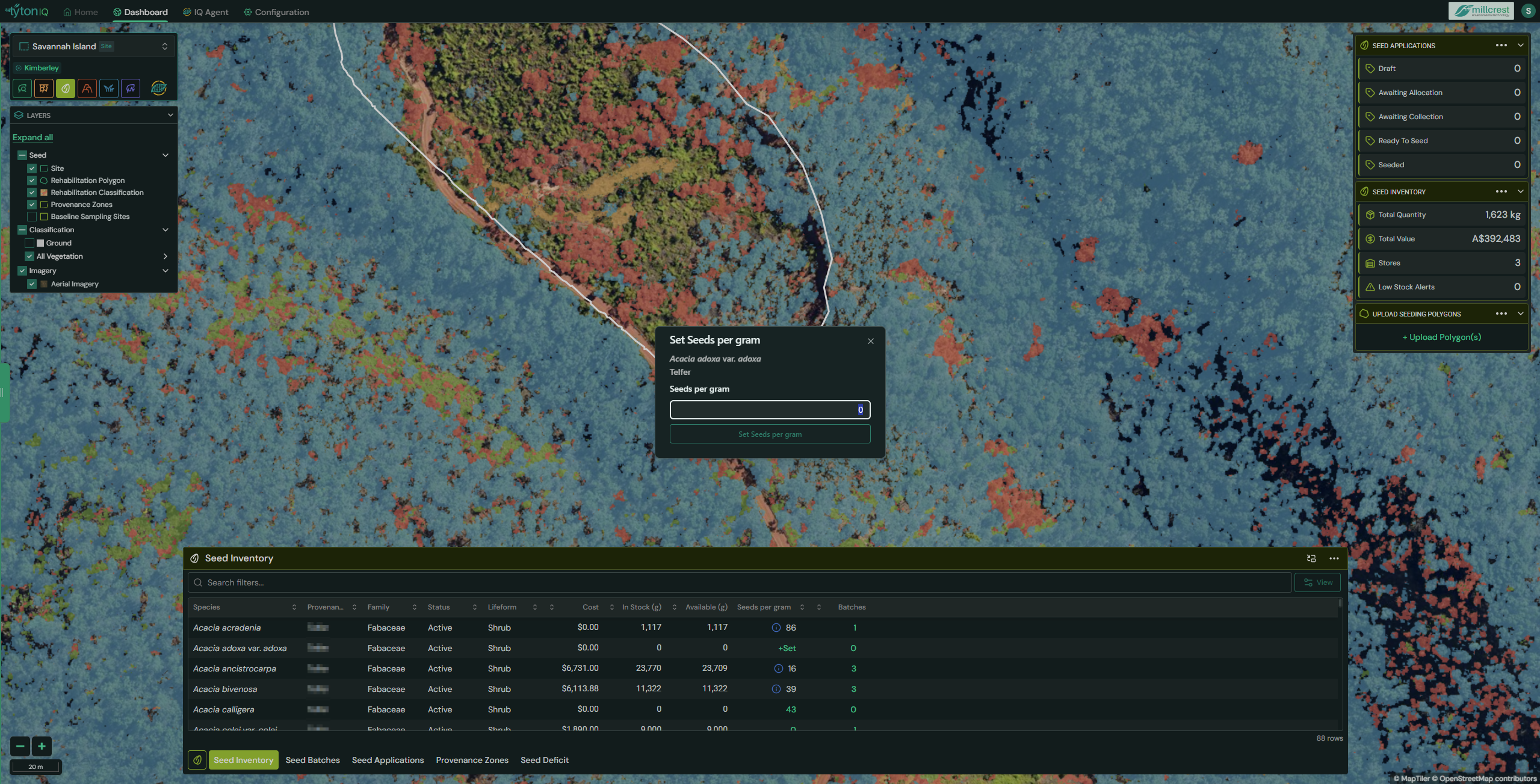
- Select a species in the Seed Inventory list.
- Click the +Set or value field under Seeds per gram.
- Enter the number of seeds per gram in the dialogue box.
- Save to update the inventory record.
If multiple seed batches exist, TytonIQ automatically calculates the average seeds per gram across all batches.
- Hovering over the blue information icon displays batch-level detail, showing seeds per gram values per batch and the calculated average.
3. Bulk Set Seeds Per Gram
For larger datasets, seeds per gram values can be updated in bulk:
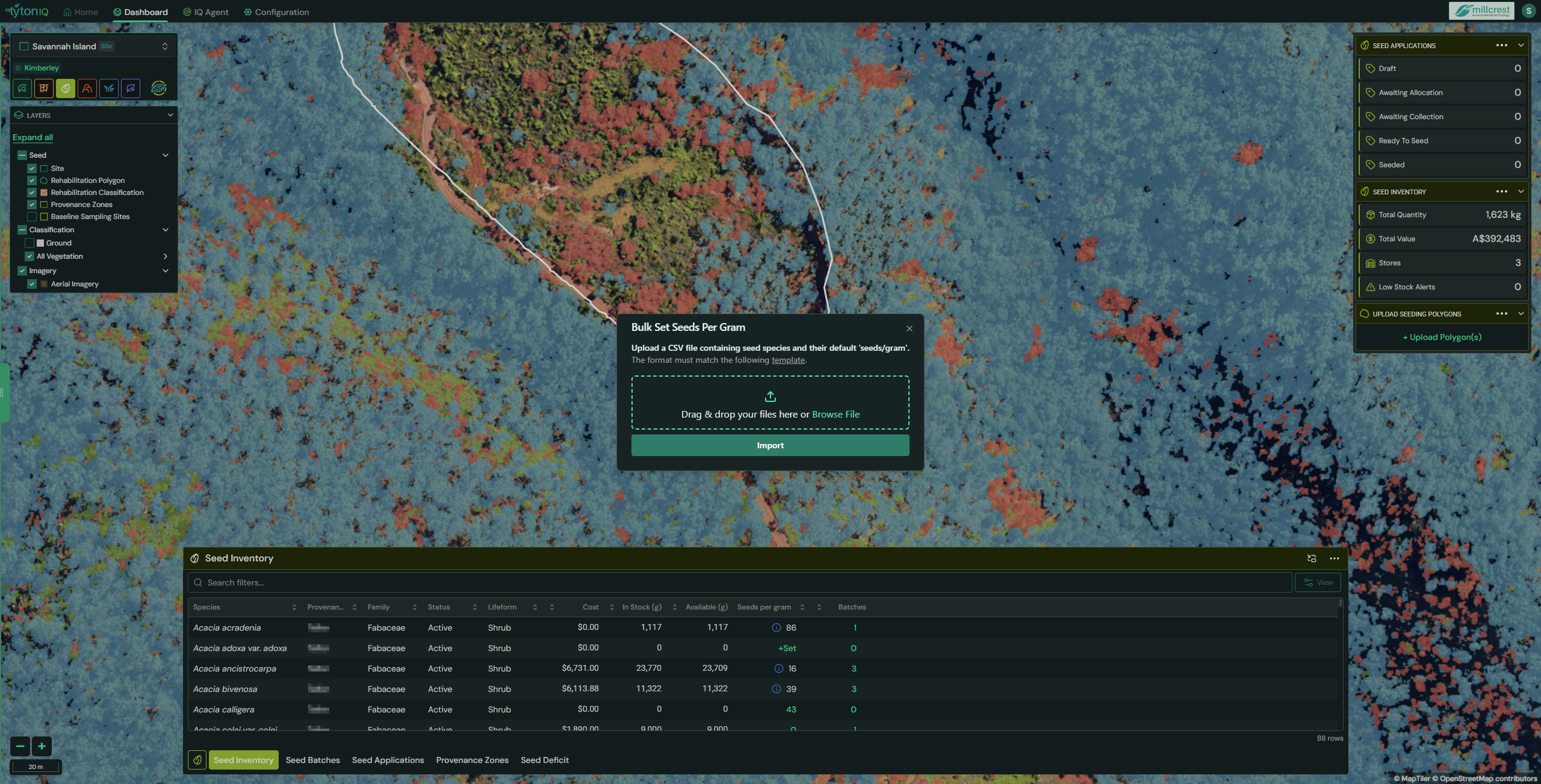
- Click Bulk Set Seeds per gram in the top-right corner of the Seed Inventory drawer.
- Upload a .csv file containing two attributes:
species name– Scientific name of the species.seeds per gram– Numeric value of seeds per gram.
4. Sidebar Panel – Seed Inventory Overview
The right-hand panel provides a high-level summary:
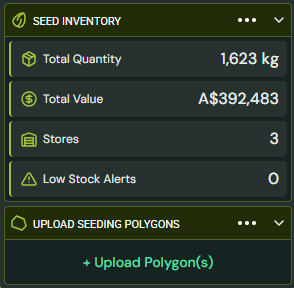
- Total Quantity: Combined seed quantity across all species (e.g. 1,623 kg).
- Total Value: Assigned monetary value of inventory (e.g. A$392,483).
- Stores: Number of active seed stores.
- Low Stock Alerts: Indicator when stock for a species drops below threshold.
This provides managers with real-time stock visibility and early warnings for replenishment.
5. Uploading Polygons for Seed Applications
Seed inventory links directly with seeding polygons, allowing applications to be planned and executed.
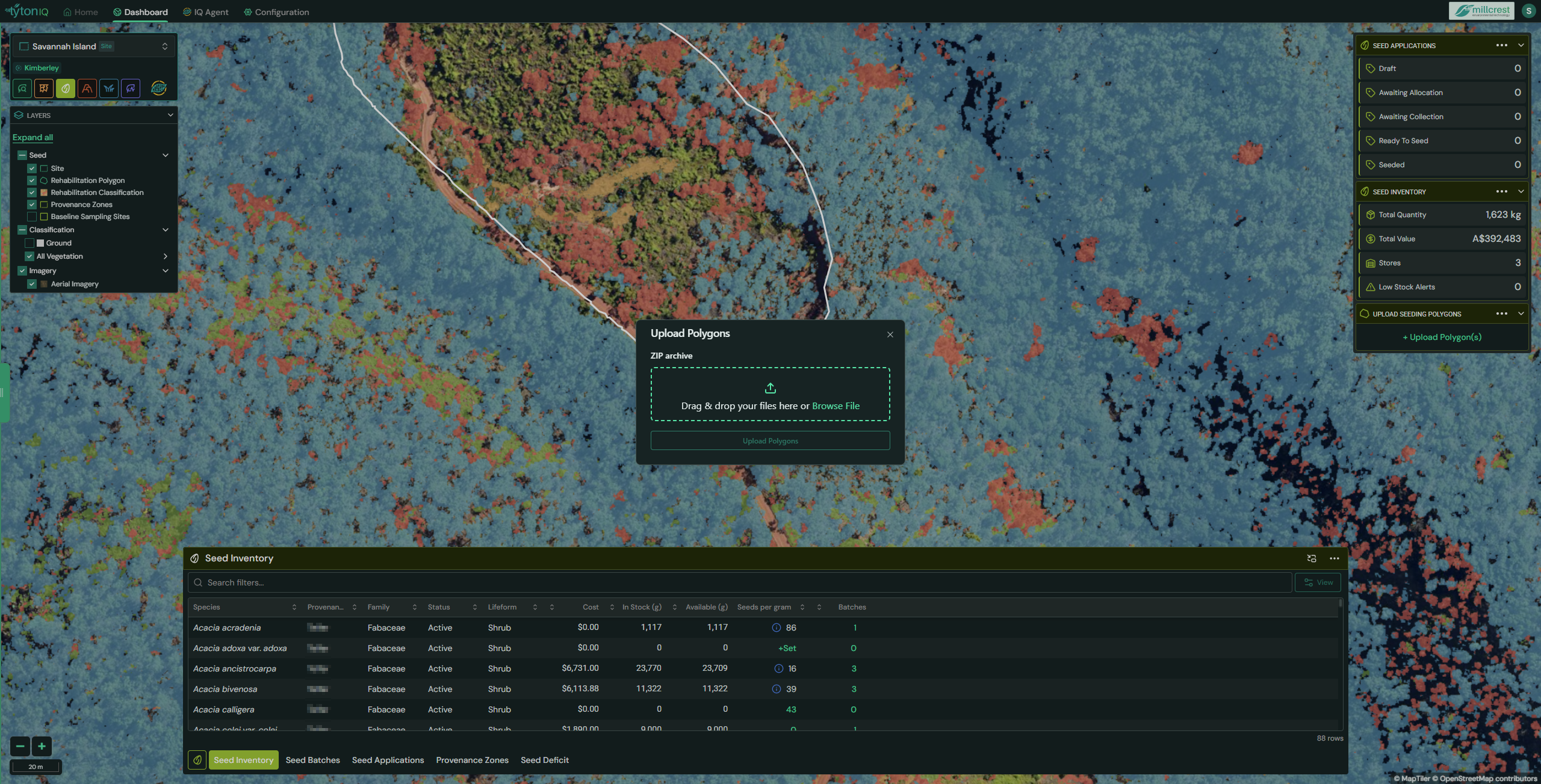
- Click Upload Polygon(s) in the sidebar.
- Upload a .zip file containing the following mandatory shapefile components:
.shp– geometry.shx– shape index.dbf– attribute table.prj– projection information.cpg– character encoding
Uploaded polygons can then be selected in the Seed Applications workflow, enabling specific seed mixes to be assigned to rehabilitation areas.
6. Seed Applications Lifecycle
Seed applications progress through several stages (displayed in the sidebar):
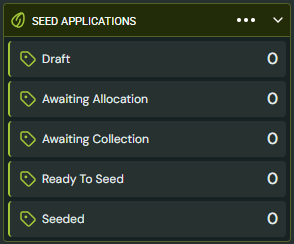
- Draft – initial application created.
- Awaiting Allocation – pending allocation of seed stock.
- Awaiting Collection – seeds allocated, awaiting collection for use.
- Ready to Seed – prepared for field application.
- Seeded – application completed.
- Always validate seed batch details before import.
- Link seed batches to correct provenance zones to maintain traceability.
- Enter seed testing results to aid in application decision-making.
- Monitor Stock Alerts regularly to plan reorders in advance.
- Accurately calculate seed requirements for polygons based on seeds per gram.